Net Tester
Validate on-site network connectivity before installing edge devices.
Introduction
Zerynth Net-Tester is a standalone network diagnostics tool designed specifically for installers, with a strong focus on ease of use. Its primary purpose is to validate network connectivity on-site before the physical installation of Edge devices, verifying that firewall rules, ports, DNS, and routes to Zerynth servers (or other specific targets) are correctly configured on the customer's network.
This guide covers the use of the standard diagnostics mode.
Download
Windows: https://downloads.zerynth.com/net-tester/windows/zerynth-net-tester.zip
Linux Ubuntu 24.04: https://downloads.zerynth.com/net-tester/linux/zerynth-net-tester.tar.gz
Extract the files after downloading and run the application found inside the created folder.
If a specific configuration file (config.yaml) is provided, copy it into the same folder as the application.
Prerequisites
- No Installation Required: The software is a single executable file (e.g.
zerynth-net-tester.exeon Windows orzerynth-net-testeron Linux) and does not require administrator privileges for standard diagnostics operations. It is distributed as a ZIP archive containing a folder with the executable and a configuration file required for the tool to work. - Configuration File: The executable must be placed in the same folder as a file named
config.yaml. This file contains the list of tests to run and is provided or prepared in advance by the Zerynth technical team.
Main Interface
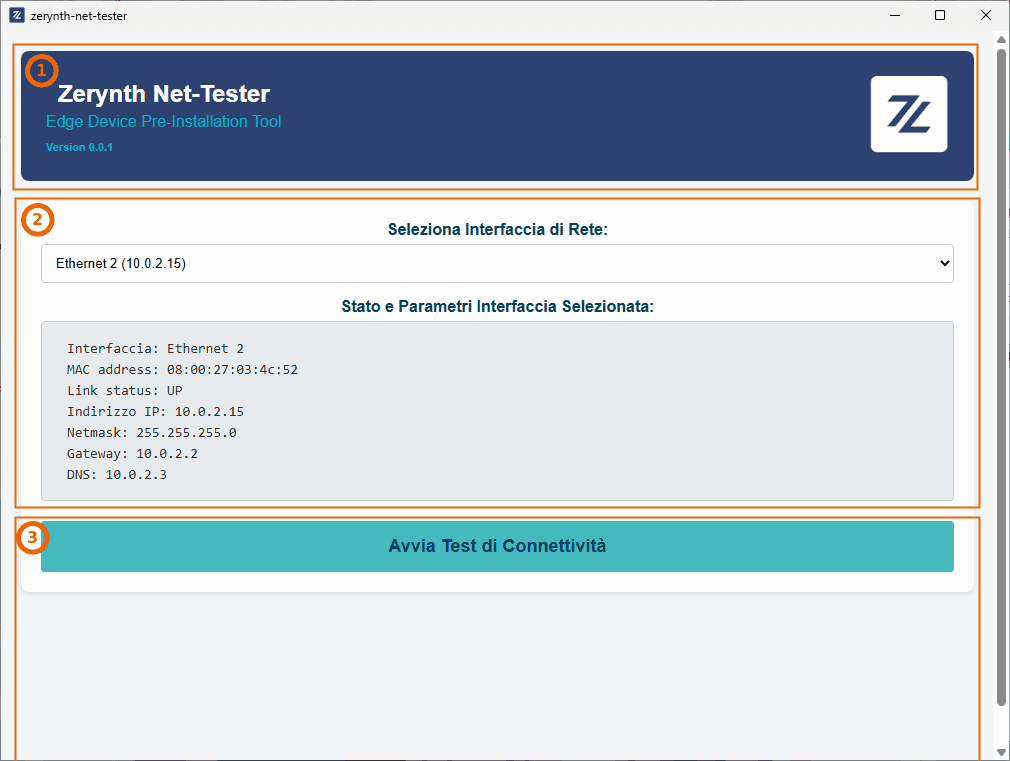
The user interface is designed to be immediate and foolproof. It consists of three main sections: the header, the interface control panel, and the results area (visible after launching a test).
1. Header
Displays the company logo, the tool name, and — in the bottom-left corner — the software version currently in use (e.g. v1.0.0).
2. Interface Selection and Status
The core of the application before running tests:
- "Select Network Interface" dropdown: Lists all active physical or virtual network adapters on the computer that have a valid IP address assigned.
- Selected Interface Status and Parameters: A panel that displays the vital parameters of the chosen network adapter in real time. As soon as a new interface is selected from the dropdown, the data updates automatically.
The displayed parameters include:
- Interface: The name of the selected interface.
- MAC Address: The hardware address of the network adapter.
- Link Status: The physical connection state (e.g. UP).
- IP Address and Netmask: The local addressing parameters.
- Gateway: The default router used by that specific interface to reach the internet.
- DNS: The name resolution servers assigned to the interface.
3. Results Area
This area contains the button to start the tests and displays the test results along with a technical dump of system parameters, useful for troubleshooting.
Once the tests are complete, a button appears that allows you to copy the detailed report so it can be pasted into an email body or a text file. The "Paste" operation is performed using standard OS shortcuts (Ctrl+V or Cmd+V).
Step-by-Step Usage Guide
Step 1: Launch the Application
Double-click the Zerynth Net-Tester executable. Make sure the config.yaml file is located in the same folder.
Step 2: Select the Network From the dropdown menu, select the network interface you want to test. For example, if you are connected to the network under test via cable, select the "Ethernet" adapter; if you are on Wi-Fi, select the relevant wireless adapter.
Step 3: Verify the Parameters Check the panel below to confirm that the computer has correctly received an IP Address, a Gateway, and DNS servers from the customer's network. If these values show "N/A" or unexpected values, the network test will fail due to a lack of basic connectivity.
Step 4: Run the Test Click the blue "Start Connectivity Test" button. The software will run all tests, forcing network traffic to go exclusively through the interface selected in Step 2. During execution, the button will display the text "Test in progress...".
Reading the Results
When the tests finish, a new tab called Test Results will appear.
Each row represents a tested target and shows:
- A visual indicator: Green (OK) or Red (FAILED).
- Test description: (e.g. "Ping to Google" or "Zerynth MQTT Connection").
- Technical Details: The Host address, Port, and Protocol used (TCP, UDP, or ICMP/Ping).
- Outcome: On success, you will see "OK". On failure, "FAILED" will be accompanied by a textual Error Detail explaining the exact reason for the block (e.g. Timeout, Connection Refused, Host Unreachable). This detail is essential for determining whether the issue is caused by a customer firewall or a routing problem.
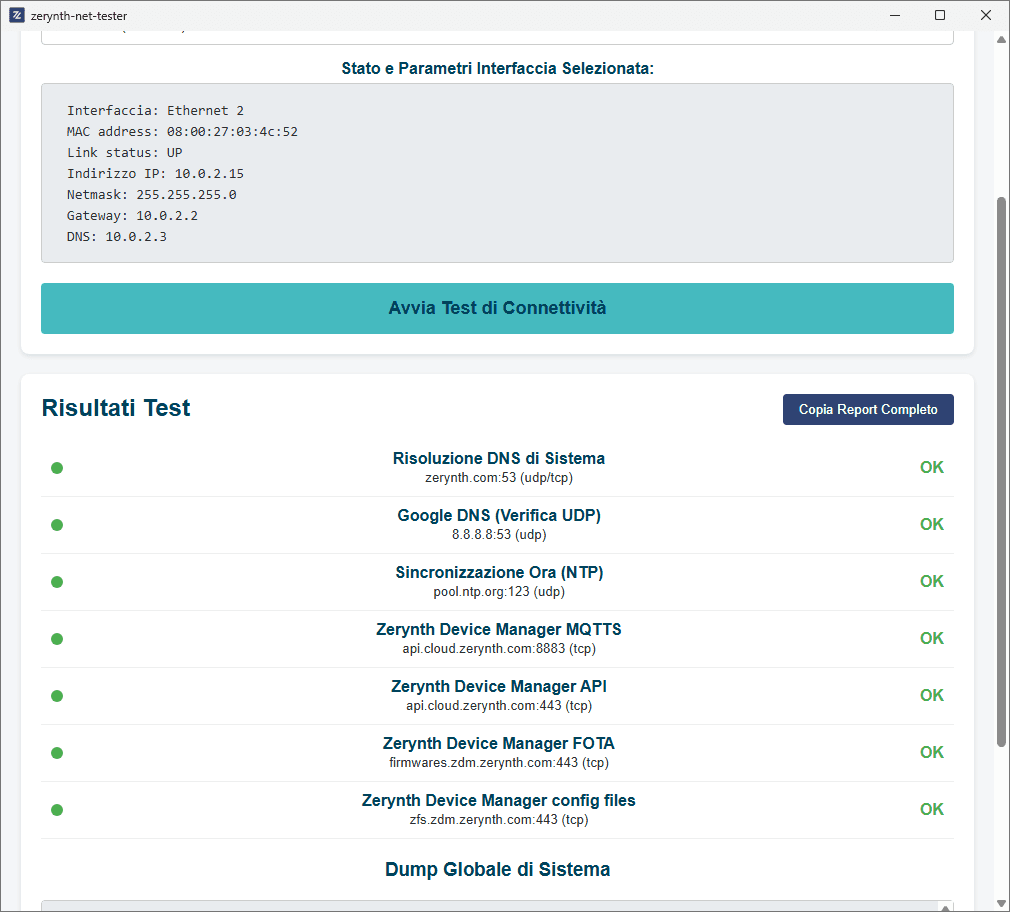
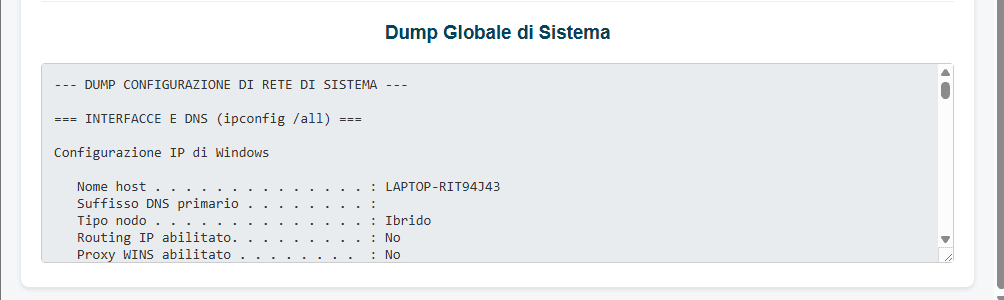
At the bottom of the screen there is also a Global System Dump area. This is an advanced technical log containing complete routing tables and the configurations of all network adapters. It is generated to assist network engineers when dealing with complex routing issues.
Exporting and Sharing the Report
If tests fail, or if proof of correct configuration is required as part of installation documentation, all data can be exported with a single click.
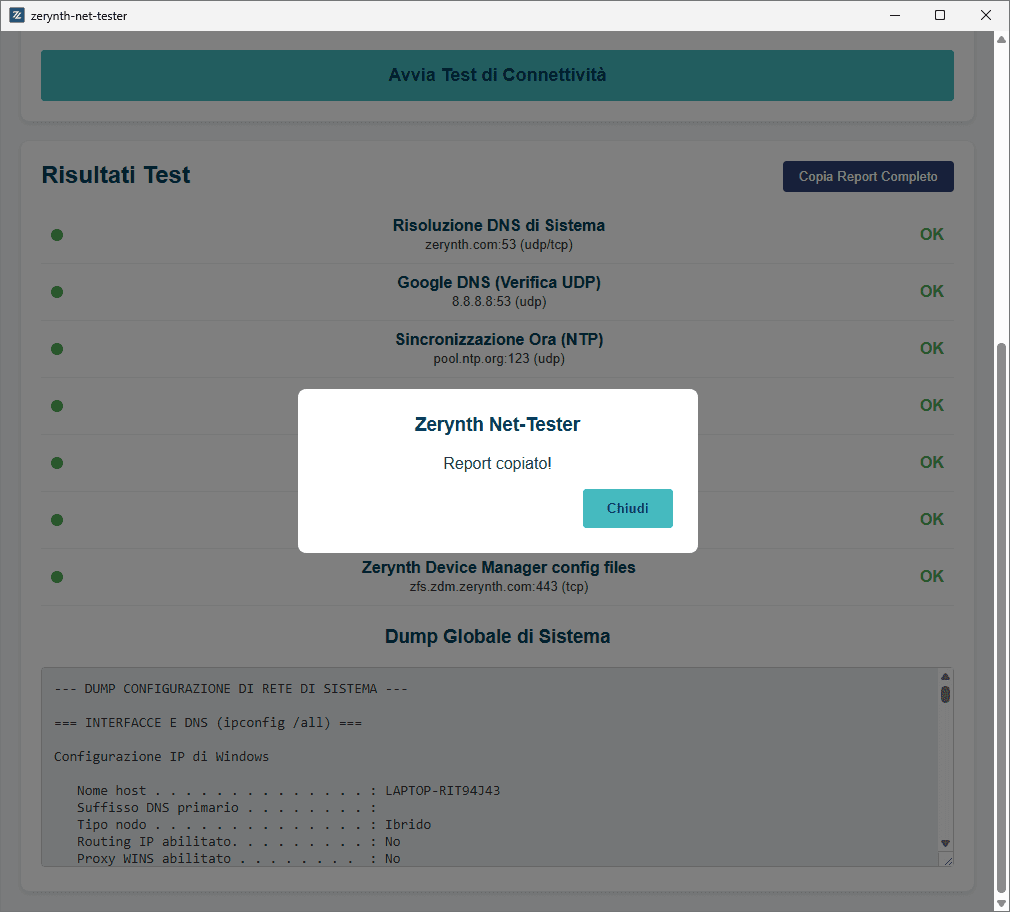
- Click the "Copy Full Report" button located in the top-right corner of the results section.
- A pop-up will confirm that the report has been copied to the clipboard.
- Open your email client, a text file, or your company ticketing system and use the "Paste" function (Ctrl+V or Cmd+V).
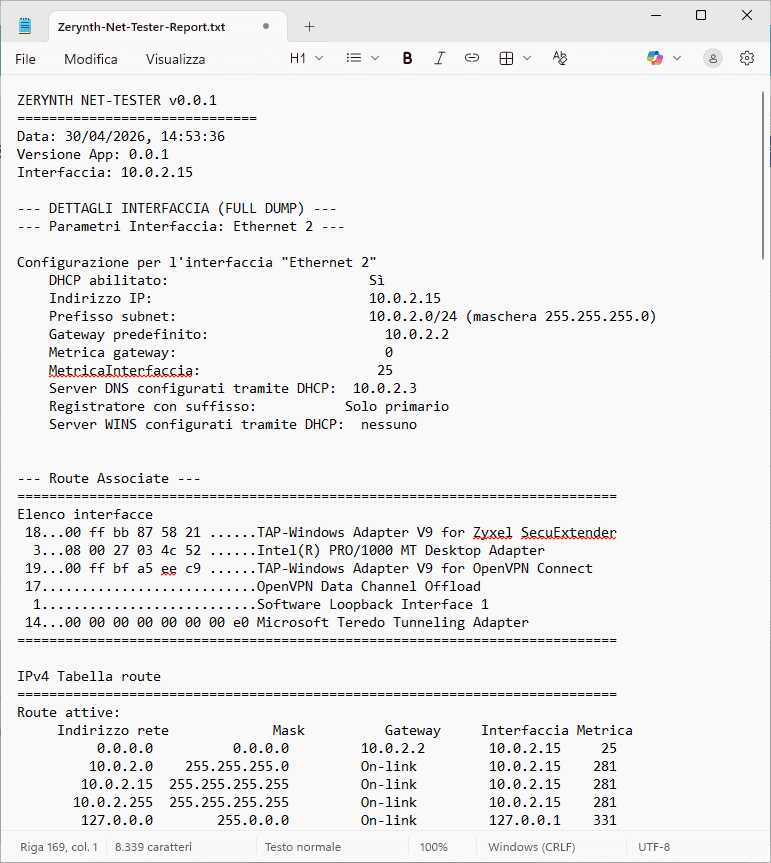
 The pasted report is cleanly formatted and contains:
- The software version used and the test timestamp.
- The network interface used.
- A complete technical dump of the Gateway, routes, and DNS for advanced debugging.
- A bulleted list of all passed (OK) and failed (FAIL) tests, with detailed error messages.
- The global system dump.