
Cabinets
Electrical panel list, cabinet detail pages, and output-line drilldowns in the Energy app.
Overview
The Cabinets subpage separates electrical panel analysis from machine analysis. It includes the cabinet list, the cabinet detail page, and the output-line detail page.
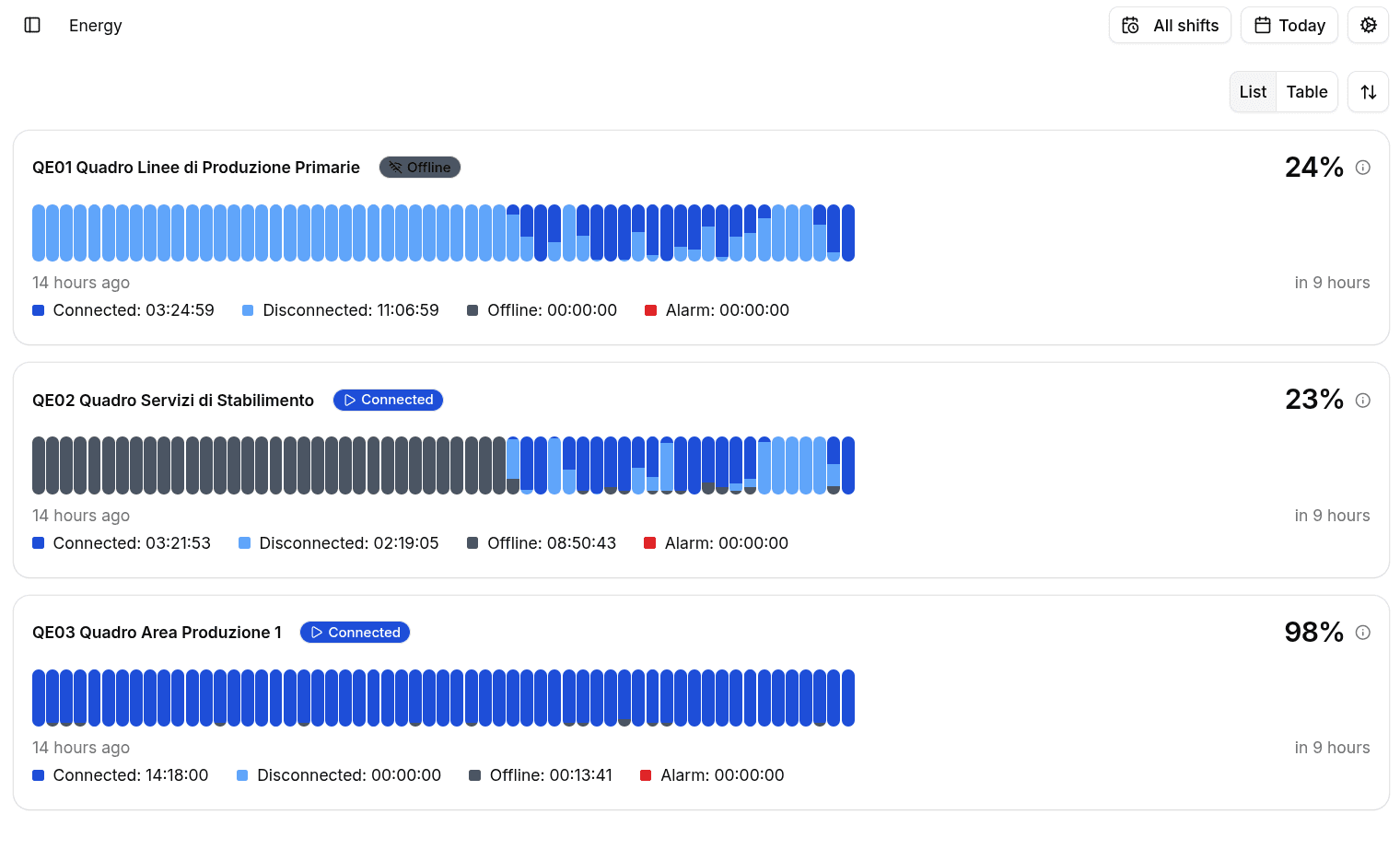
Cabinet List
The list can be displayed as cards or as a table.
Each cabinet entry includes:
- Name with direct navigation to the cabinet detail page.
- Asset type for standard and + Energy Meter cabinet variants.
- Current status shown as Connected, Disconnected, or Offline.
- Alarm indicator when alarms are active.
- Utilization Rate as the primary KPI.
- A status timeline with connected, disconnected, offline, and alarm durations.
In table view, the page also exposes filtering and CSV export.
Cabinet Detail
Opening a cabinet shows two tabs:
- Input Feed, always available.
- Output Lines, shown only when the cabinet has monitored output lines.
Input Feed
The Input Feed tab is the default view and now also contains the advanced electrical diagnostics.
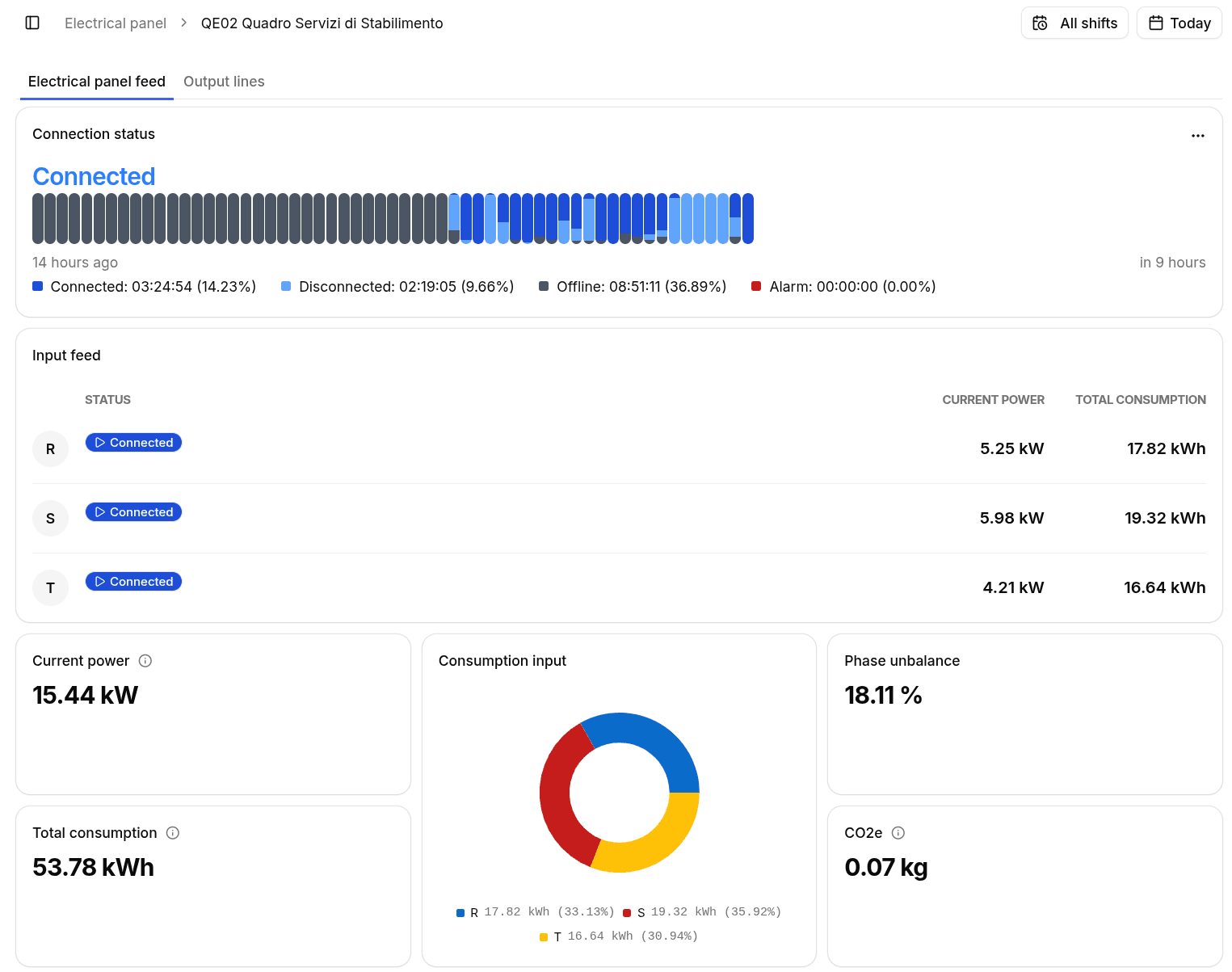
Connection Status
The top card shows the current cabinet status together with a timeline for:
- Connected
- Disconnected
- Offline
- Alarm
For each state, the page reports both total duration and percentage over the selected time range.
Input Feed Summary
The input feed area combines per-line and aggregate information:
- A line list for the three incoming phases, labeled R, S, and T.
- The current status and alarm presence for each phase.
- Current Power and Total Consumption for each incoming line.
- Aggregate Current Power and Total Consumption across all input lines.
- Consumption Input donut chart to compare the share of energy consumed by each incoming phase.
- Phase Unbalance to monitor how evenly the load is distributed.
- CO2e for the total environmental impact of the input feed.
Input Feed Trends And Diagnostics
The same tab also includes:
- A Power chart with the trend of the three input phases over time.
- A Phase Unbalance chart.
- The integrated Advanced Parameters area with:
- current electrical values,
- line current and line voltage trends,
- active, reactive, and apparent power trends,
- power factor trend,
- advanced parameters history table.
This replaces the previous cabinet layout where advanced parameters were documented as a separate section.
Output Lines
When output lines are available, the Output Lines tab groups their energy data in a dedicated view.
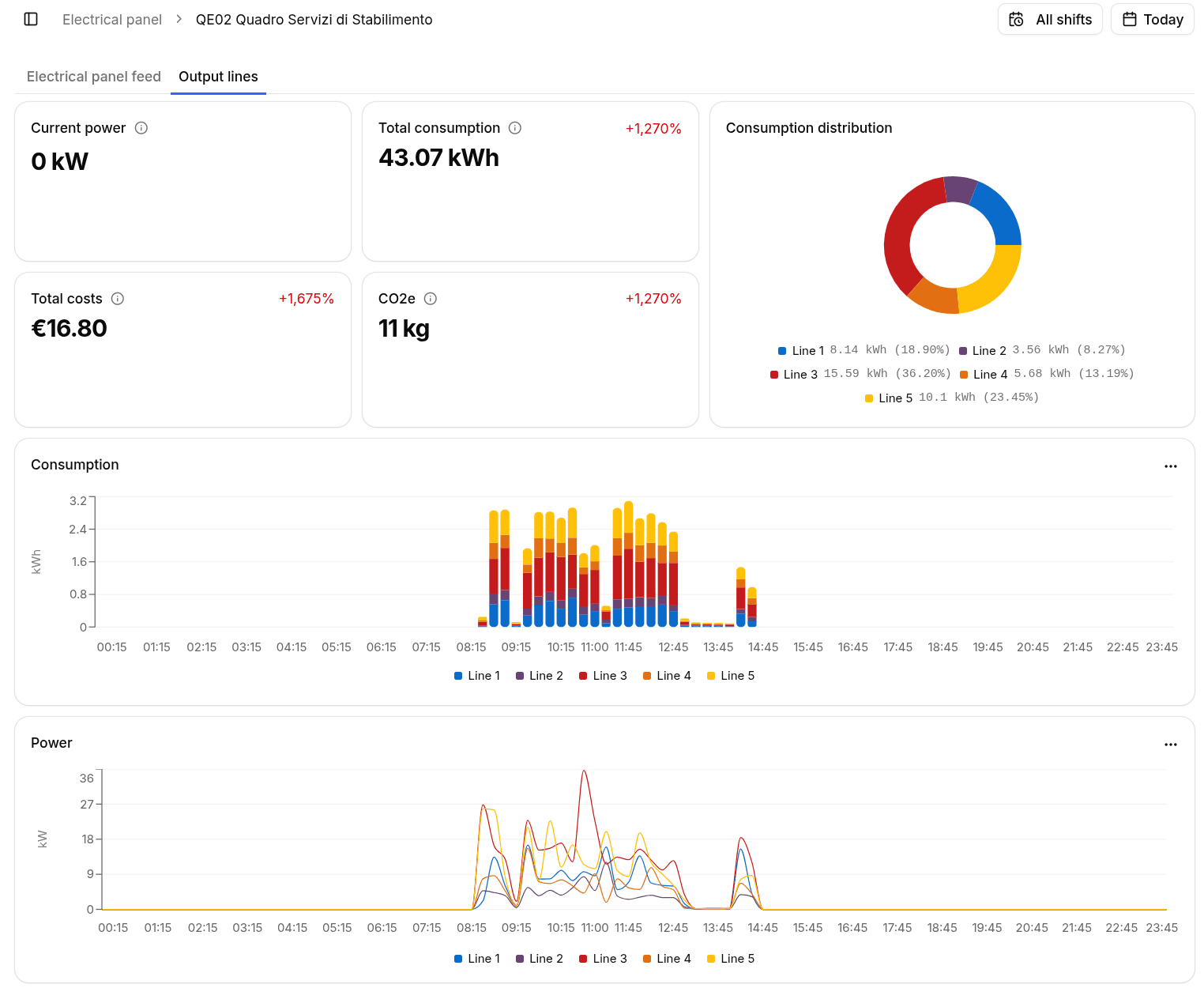
This tab includes:
- Current Power for the output section.
- Total Consumption for the selected time range.
- Total Costs based on the configured tariff.
- CO2e for the related emissions.
- Consumption Distribution donut chart by output line.
- A Consumption chart split by line.
- A Power chart split by line.
- A detailed table with line name, status, alarm, consumption, cost, and CO2e.
Output Line Detail
Selecting an output line opens a dedicated detail page for that line.
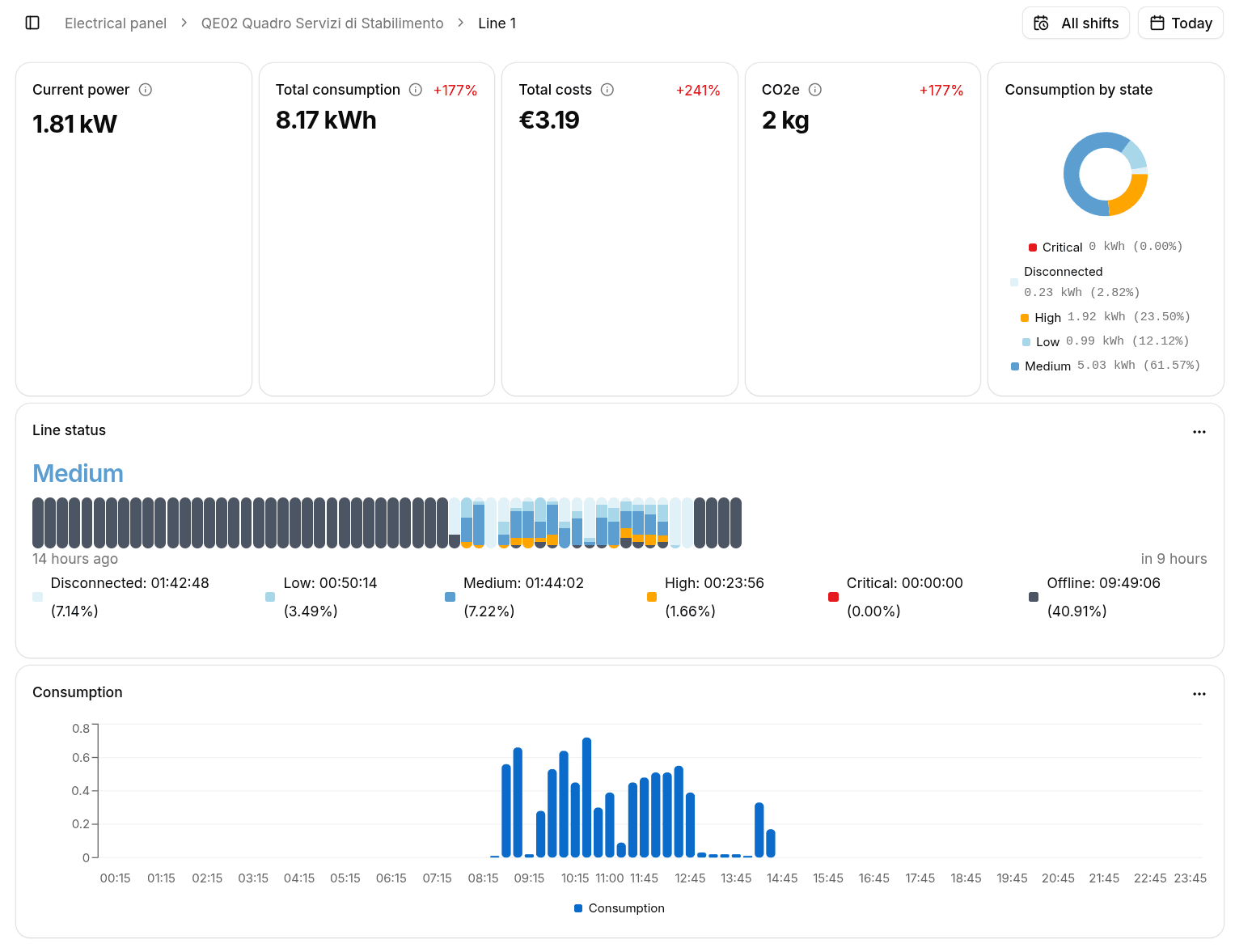
The line detail page shows:
- Current Power
- Total Consumption
- Total Costs
- CO2e
- Consumption By State donut chart
- Line Status timeline
- Consumption trend chart
The line status uses the following states:
- Disconnected
- Low
- Medium
- High
- Critical
- Offline
As in the other Energy pages, charts and tables can be exported as CSV.